How to Design a Website With WordPress From Start to Launch
Designing your first site can feel overwhelming—but WordPress makes it realistic to go from “blank screen” to a polished, live website without needing to code.
In this beginner guide, you’ll learn how to design a website with WordPress step by step—from choosing the right setup to building pages, improving mobile experience, and getting ready to launch.
If you want a done-for-you build that’s fast, secure, and designed to convert, explore our WordPress website design & development service.
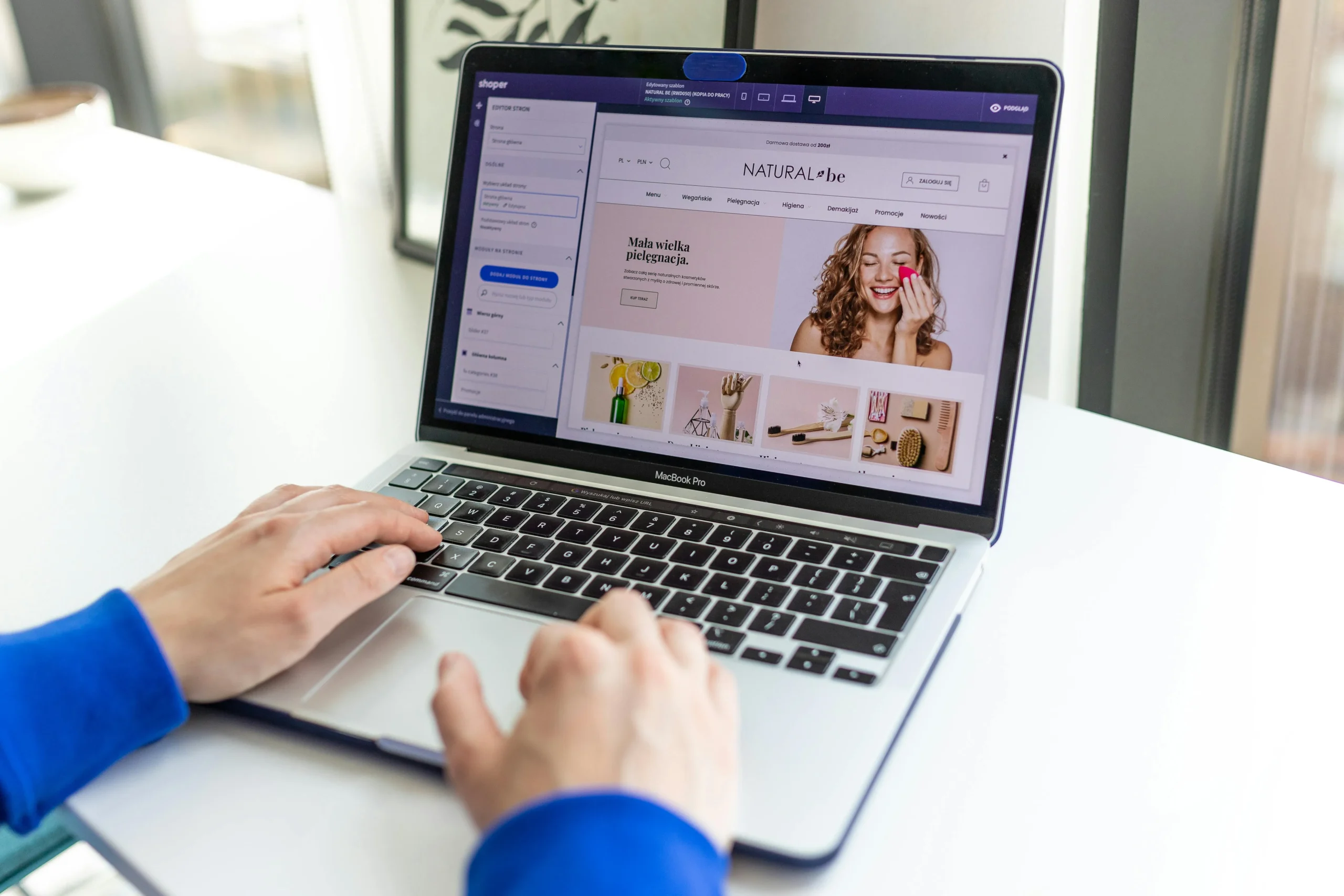
Choose the Right WordPress Setup: Hosted vs Self-Hosted
Before you pick a theme or write a single word of content, decide where your WordPress site will live:
- Hosted WordPress (managed platform) is simpler for beginners—maintenance and updates are usually handled for you.
- Self-hosted WordPress gives you more control (plugins, customization, performance tuning), but you’ll manage hosting, updates, and security.
If your goal is a flexible website you can grow over time—especially for service businesses or brands that want better SEO and performance—self-hosted is often the long-term win.
When you’re ready to structure your site for visibility and rankings, pair your build with SEO and content support so your pages are designed to be found, not just to look nice.
External references to help you decide:
- Review WordPress setup basics and best practices from Google’s developer resources and Google Search Central.
- For beginner-friendly comparisons and planning tips, see HubSpot.
Pick a Theme That Matches Your Goals and Brand
A theme controls your site’s design foundation—layout, typography, spacing, and basic styling. The best beginner approach is choosing a theme that:
- Matches your industry look and feel (modern, clean, bold, minimal, etc.)
- Loads quickly (avoid bloated themes with too many bundled features)
- Works well with WordPress blocks or a page builder
- Has solid reviews and regular updates
Think of your theme as the “frame” of a house. You can customize later, but starting with the right structure saves time and prevents messy redesigns.
Helpful external references:
Build Core Pages: Home, About, Services, and Contact
Most beginner WordPress sites need four essential pages. Build these first so your site feels complete, trustworthy, and easy to navigate:
- Home: Clear value proposition, who you help, key benefits, and a next step (call, form, booking).
- About: Your story, mission, credibility markers (only what you can prove), and what makes you different.
- Services: List services with simple breakdowns, who they’re for, what’s included, and FAQs if needed.
- Contact: A short form, clear contact details, service area (if local), and expected response time.
Tip: Keep every page focused on one goal—help the visitor understand what you do and take the next step.
If you want help creating pages that are built to convert (not just “exist”), start with our digital marketing services so your site is aligned with lead generation from day one.
External references for conversion-minded page planning:
- Practical website conversion and UX guidance can be found via HubSpot and marketing resources like Search Engine Journal.
Design for Mobile, Speed, and Easy Navigation
A beautiful site that’s slow or confusing won’t perform. Prioritize three basics:
Mobile-friendly layout
- Use readable font sizes and comfortable spacing.
- Make buttons easy to tap.
- Avoid huge images that push key content too far down.
Fast loading speed
- Compress images before upload.
- Limit heavy plugins.
- Keep layouts clean and lightweight.
Easy navigation
- Use a simple menu (Home, About, Services, Contact).
- Add clear calls-to-action (CTA) on key pages.
- Keep important info above the fold.
Speed and usability aren’t just “nice to have”—they affect engagement, leads, and SEO. For a more structured approach to tracking what’s working after launch, consider Performance & Growth tracking.
External references:
- SEO and performance guidance is covered widely by Google Search Central and tools-based resources like Semrush.
Customize Layouts With Blocks or a Page Builder
WordPress gives you two beginner-friendly ways to design pages:
Option A: WordPress Block Editor (Gutenberg)
- Great for clean layouts
- Less bloat, usually faster
- Perfect for simple business sites and blogs
Option B: Page Builder (like Elementor)
- More control over layout and styling
- Easier drag-and-drop design
- Ideal if you want custom sections without coding
A smart approach is to start simple and add complexity only if needed. Too many design elements can slow your site and create maintenance headaches later.
If you want professional layouts built with Elementor while keeping performance and SEO in mind, our team can help through Website Design & WordPress Development.
External references:
Final Launch Checklist: SEO, Security, and Backups
Before you hit “publish,” run through this practical checklist:
SEO basics
- Add a clear page title + meta description for key pages
- Use one H1 per page and logical headings
- Add descriptive image alt text
- Create clean URLs (short, readable)
- Connect Search Console for indexing visibility (optional but recommended)
Security essentials
- Enable SSL (https)
- Use strong admin passwords
- Limit login attempts and keep plugins updated
Backups
- Set automated backups (daily/weekly depending on update frequency)
- Store backups offsite when possible
- Confirm you can restore if something breaks
If you want your site to launch with a stronger foundation for rankings and content growth, consider ongoing support through our SEO & content service—especially if publishing blogs is part of your plan.
External references:
- SEO launch essentials and indexing guidance: Google Search Central and Google Developers
- Ongoing SEO/site audit practices: Ahrefs and Semrush
- Email list setup post-launch (optional): Mailchimp